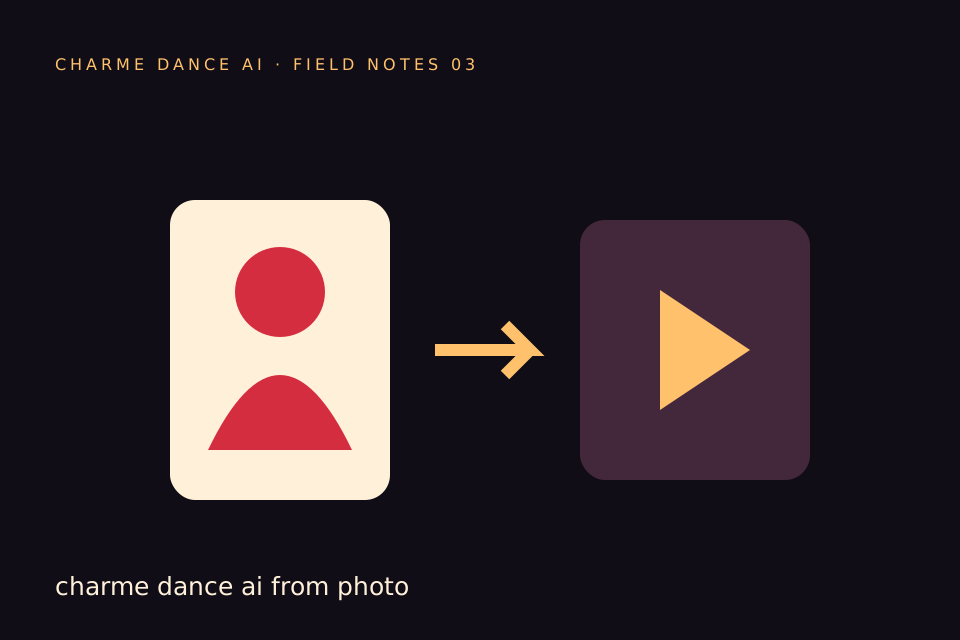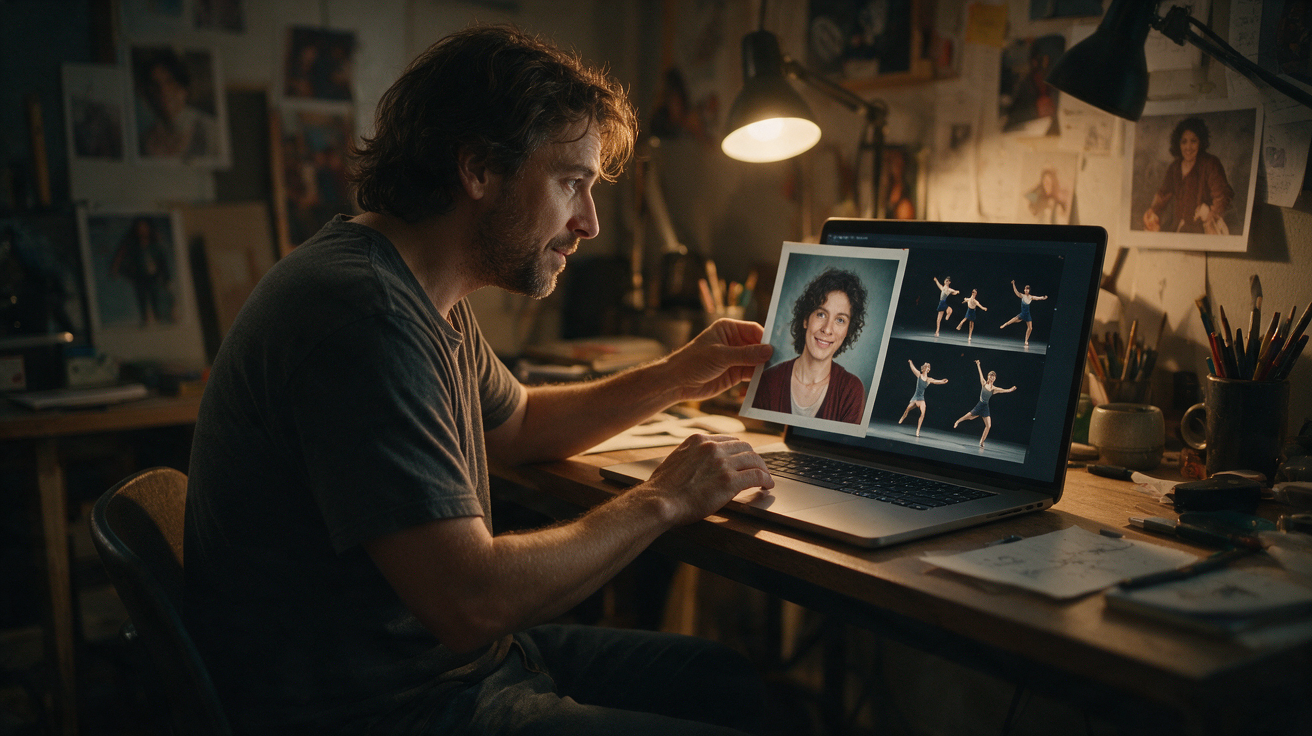
Charme Dance AI Video from One Photo offers a novel way to animate a single portrait image into a short, lively video clip. By uploading one clear photo of a consenting adult, users can generate a vertical silent video that applies a licensed dance motion to their face, creating a dynamic visual from a still image. This guide explains how to use charmedanceai.pro’s service effectively, clarifies its current capabilities and limitations, and provides practical advice for managing your experience.
Before creating your own video, try the free preview. Every new account can create one free watermarked preview; the full 720p MP4 is unlocked with a credit pack or plan. Failed generations return their reserved credits.
Understanding the Single Photo Input and Identity Representation
At the core of charmedanceai.pro’s AI video generation is a single portrait photo of a consenting adult. The platform accepts one image per request, in JPG, PNG, or WebP format, with a maximum file size of 10 MB. The photo should clearly show the person’s face, ideally facing forward or slightly angled, with minimal obstructions such as hats or sunglasses.
The AI uses this photo along with a licensed stock hallway dance reference and the Kie AI Seedance 2.0 model (bytedance/seedance-2) to produce a vertical 720p MP4 video approximately 10 seconds long. The dance motion is fixed and standardized; it is not the viral original choreography but a licensed alternative. The video is silent and does not include any audio track.
The AI’s task is to animate the face in the photo according to the dance motion. However, it does not guarantee an exact likeness or replication of the person’s real movements or expressions. The output is a creative representation that preserves some facial identity cues while applying the fixed dance choreography. Variations in the final video depend on photo quality, lighting, and how well the AI maps the face onto the motion.
Preparing Your Photo for Best Results
Choosing the right photo is essential to achieving a good animation. Here are some tips to prepare your image:
- Clear Face Visibility: The face should be fully visible, facing mostly forward or slightly angled. Avoid extreme side profiles, heavy shadows, or obstructions like hats and sunglasses.
- Good Lighting: Even, natural lighting without harsh shadows or overexposure helps the AI detect facial features accurately.
- Neutral Background: A simple background reduces distractions and helps the AI focus on the face.
- High Resolution: Use the highest quality photo possible within the 10 MB limit to retain facial details.
- Consent: The photo must be of a consenting adult, in line with platform policies.
For more detailed photo preparation advice, see the internal resource: /blog/best-photo-for-toc-toc-ai.
How the Seedance 2.0 Model Shapes Your Video Output
The AI applies the Seedance 2.0 model, a licensed choreography reference lasting about 10 seconds, to animate your portrait. This means every generated video features the same underlying dance sequence, but the facial features come from your uploaded photo.
The video is vertical, 720p resolution, and silent. Since the dance is fixed, the main variation between outputs comes from how the AI maps your face onto the motion. The platform does not currently support alternative dance models, multiple dancers, or different video formats and resolutions.
Because the video is silent, users can add their own music or audio tracks afterward using external video editing tools. The platform does not provide built-in music or audio rights.
Step-by-Step Guide to Generating Your Charme Dance AI Video
Generating a video on charmedanceai.pro involves a straightforward process:
- Create an Account or Log In: You can browse the site without registration. Generating a video starts with one free watermarked preview; the full file requires credits, and the cost is shown before you begin.
- Upload Your Photo: Select one clear portrait photo in JPG, PNG, or WebP format, up to 10 MB.
- Submit for Processing: After uploading, your request enters a server queue. Processing time varies but typically takes around 10 minutes.
- Check Job Status: You must manually check the site to see if your video is ready; the platform does not send email notifications.
- Download and Review: Once complete, you can download the private original video in 720p MP4 format. A smaller 320px clean preview is also available after generation; the free watermarked preview is the pre-purchase option.
- Use Credits Wisely: Each default generation consumes 50 internal credits, equal to one video allowance. If the generation fails, those credits are refunded.
For more on credits and pricing, see /pricing.
Credit System and Pricing Overview
Understanding the credit system is key to managing your usage and costs. Each default video costs 50 internal credits. Public plans describe that as one video allowance. Credits are purchased as follows:
| Credit Type | Cost | Validity |
|---|---|---|
| One-time pack (1 video) | $9.90 | Never expires |
| One-time pack (3 videos) | $19.90 | Never expires |
| One-time pack (5 videos) | $29.90 | Never expires |
| Monthly subscription (10) | $29.90/month | Credits expire monthly |
- Every new account gets one free watermarked preview; a credit pack or plan unlocks the full file.
- New accounts get one free watermarked preview; credits are needed for the full 720p file.
- Purchased credits do not expire if bought as one-time packs; subscription credits expire monthly.
- Monthly subscriptions renew automatically until canceled.
- Yearly Basic costs $100 for 34 standard videos, billed once a year. Credits expire at the end of the billing year; cancel future renewals anytime.
Credits are deducted immediately upon submission. If generation fails, credits are refunded.
Worked Example: Creating a Charme Dance AI Video for "Alex" (Hypothetical)
Consider a fictional user, Alex, who wants to create a fun AI video from a single portrait photo.
- Photo Selection: Alex takes a high-resolution selfie with even natural lighting against a plain wall. The photo is a JPG file, 3 MB in size.
- Account Creation: Alex creates an account, buys a one-video pack and generates his video; the cost was shown before he started.
- Uploading Photo: After his purchase, Alex uploads the selfie and generates his video; the cost was shown before he started.
- Video Generation: Alex submits the photo for processing. The queue takes about 10 minutes.
- Downloading Output: Alex downloads the approximately 10-second vertical 720p silent MP4 video showing the face animated with the Seedance 2.0 hallway dance.
- Review & Share: Alex notices the AI captured facial features reasonably well, though some minor distortions occur during fast motion parts — a normal variation. Alex adds background music using external software and shares the video on social media.
This example highlights the importance of patience during the credit purchase phase and managing expectations about AI-generated motion fidelity.
Managing Expectations: What Charme Dance AI Video Can and Cannot Do
While the technology is innovative, it has clear limitations:
- Single Photo Input: Only one photo per generation is accepted; multiple photos or video inputs are not supported.
- Fixed Dance Motion: The AI applies a single licensed hallway dance choreography (Seedance 2.0). There is no option to customize or select different dance styles.
- No Audio Included: Output videos are silent; users must add audio separately.
- Processing Time: Video generation takes approximately 10 minutes but can vary due to server load.
- No Notifications: Users must manually check the site for job status; no email alerts are sent.
- Credit System: Each full video costs 50 internal credits; new accounts start with one free watermarked preview.
- No Custom Editing: The platform does not offer trimming, muting, or other video editing features.
- No API or Advanced Features: There is no API access, multiple dancer support, or alternative output formats.
- Content Screening: The platform screens all inputs and outputs for NSFW content.
- No Music Rights: The platform does not provide third-party music rights.
Understanding these boundaries helps set realistic expectations and guides users on how to best utilize the service.
Practical Tips for Optimizing Your Charme Dance AI Video Experience
- Buy Credits: The free preview comes first. To unlock the full file, buy a credit pack or plan; the cost of the clip is shown before you start.
- Choose Photos Carefully: Refer to /blog/best-photo-for-toc-toc-ai for photo tips to improve output quality.
- Test with One-Time Packs: Use one-time credit packs to experiment with different photos before committing to a subscription.
- Plan Post-Processing: Since videos are silent, plan to add music or captions using your preferred video editor.
- Monitor Credit Balance: Check your credit balance before submitting to avoid interruptions.
- Respect Privacy and Consent: Upload only photos of consenting adults to comply with platform policies.
Frequently Asked Questions
How long does it take to generate a video from one photo?
Video generation typically takes about 10 minutes but can vary depending on server queue length and load.
What photo formats and sizes are accepted?
The platform accepts JPG, PNG, and WebP files up to 10 MB in size.
Can I upload multiple photos or videos?
No. Currently, only one photo per generation is accepted. Video or multiple photo uploads are not supported.
How do I pay to generate videos?
Every new account gets one free watermarked preview. The full 720p file needs a credit pack or plan; the cost of the clip is shown before you start, and failed generations return their reserved credits.
Does the output video include audio?
No. Generated videos are silent. You must add music or sound effects using your own video editing software after downloading.
Can I customize the dance or motion style?
No. The AI applies a fixed licensed hallway dance choreography (Seedance 2.0). Custom dance styles or multiple dancers are not available.
How do I know when my video is ready?
You must manually check the job status on the site. The platform does not send email notifications upon completion.
What if the video generation fails?
If generation fails, your credit is refunded automatically.
Explore More Resources and Next Steps
For users interested in improving their AI video creations, visit the detailed prompt guide at /blog/toc-toc-ai-prompt-guide.
To understand current pricing options and select the best plan for your needs, see /pricing.
Learn more about selecting the perfect photo to maximize AI video quality at /blog/best-photo-for-toc-toc-ai.
Start your creative journey today by uploading your portrait and bringing your still images to life with Charme Dance AI Video from One Photo!
For questions or support, contact the team at contact@charmedanceai.pro.
Try the tool from this guide
Use the same generator here: one adult photo or a text description, with the credit cost shown before submission.
Make your Charme Dance AI video
Add one clear adult photo. Keep your look, choose the atmosphere, and create a new dance scene.
JPG, PNG or WebP · up to 10 MB
Use a clear front-facing photo with your shoulders and outfit visible. A full-body photo gives the model more useful detail.
Extra direction (optional)
Video length
Only completed videos you choose to share may be selected for the gallery. Your original photo stays private.
$19.90/ 30 credits
30 credits · 12 secondsYou have 0 of 30 credits · short 30.
Generation uses paid credits. No registration gifts or free previews.
Your videos
Your finished Charme videos will appear here. Start with a photo or describe a scene above.
Charme Dance AI
Charme Dance AI editorial team · Source and publishing references