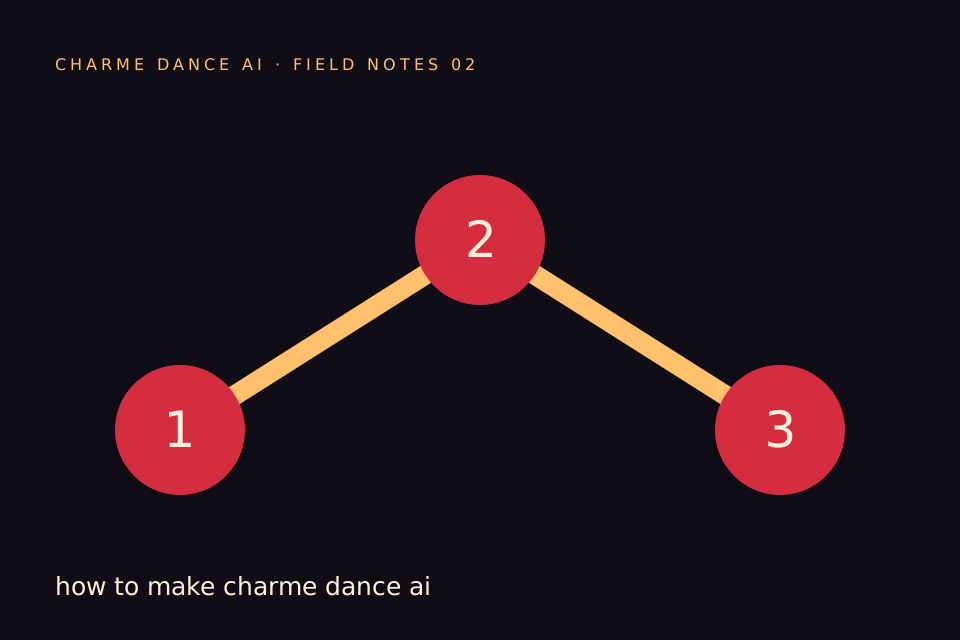
To make a Charme Dance AI video, prepare one clear adult photo or a fictional scene description, review the selected output and credit cost, and submit a paid generation. The result is a new AI interpretation of a relaxed party dance. You do not need a video editing timeline, a CapCut project or footage of yourself performing the moves.
This walkthrough follows the generator embedded below. Its current default is standard Seedance 2.0, 720p, vertical 9:16 and 12 seconds, costing 30 credits. It does not promise an exact copy of a viral reel. Every generation uses paid credits; a preparation timer is not a free render.
1. Decide whether your face matters
Choose image mode when you want the dancer to resemble you. The photo supplies appearance information the model cannot infer from your name. Pick a picture with one adult, visible eyes, a clear face and enough of the outfit and body to make movement plausible.
Choose text mode when a fictional character is enough. You can describe an adult in a cream linen shirt, a warm courtyard and a small crowd. This avoids uploading a personal image, but the character will not reliably match a real person. Do not put a celebrity name into a text prompt to get around the photo rules.
A useful decision is to write your intended outcome in one sentence: “I want a playful, clearly labelled video for my own group chat.” That keeps the project focused and makes it easier to reject unnecessary features or a package larger than you need.
2. Prepare the input before signing in
In photo mode, select a JPG, PNG or WebP below 10 MB. The filename alone does not establish that the file is an image; the service checks its content. A renamed PDF or broken download will be rejected. If your phone saves HEIC, export a supported copy first.
Inspect the actual photo at a normal viewing size. Avoid a face that occupies only a few pixels, sunglasses that conceal the eyes, a mask, a strong beauty filter or someone else standing close behind the lead. A photograph with more useful information is generally a better starting point than a tiny crop enlarged many times.
Use a photo you are entitled to upload. If the subject is another adult, ask permission for both generating the video and the intended sharing. A birthday surprise can still be planned with consent; the surprise can be the scene, not the unauthorised use of someone’s face.
3. Keep extra direction short
The built-in brief already supplies relaxed side steps and a party atmosphere. Extra direction should clarify your preference rather than repeat a long list of model keywords. “Warm string lights, a quiet courtyard and a small background crowd” is a more coherent request than several unrelated locations and lighting styles.
Keep the lead in view. If the recognisable person is the point of the video, avoid requesting rapid camera spins, dark silhouette lighting and repeated close-ups in the same short clip. These instructions compete for limited screen time.
In text mode, name the subject, action, setting and camera approach. For example: “A fictional adult in a blue shirt dances small Charme-inspired side steps in a warmly lit courtyard. One continuous vertical shot, relaxed shoulders, modest background crowd.” This is an original scene brief, not a request to copy somebody’s recording.
4. Review the cost and visibility choice
Before submitting, check the exact credit amount and duration next to the button. A credit package and a video specification are separate choices. A package with fewer than 30 credits does not cover the current default 12-second render on its own.
Choose the result visibility deliberately. Your uploaded photo is an input, not a public gallery image. A public result may be considered for the curated gallery; a private result stays out of it. Do not select public simply because it is the first visible option if the subject agreed only to private sharing.
The permission checkbox is a real commitment. Read it before continuing. If an input involves a child, a public figure or non-consensual content, choose a different project instead of changing wording to bypass screening.
5. Sign in and pay only when ready
Email sign-in uses a six-digit one-time code. You do not create a password. Keep the same browser tab so your prepared input can be restored after sign-in. If the code has expired, request a new one after the resend cooldown rather than repeatedly guessing.
When the balance is insufficient, “Prepare my video” opens a 15-second countdown before the purchase choices. During that time, video generation has not started. The message after the countdown says the video is ready to generate, not that a finished file exists.
Check the package name, currency, total and billing interval. A one-time pack does not renew; subscriptions do. No purchase should depend on a claimed temporary discount that is not actually offered. If checkout fails or remains pending, check the account status before attempting another payment.
6. Follow the real job state
After a valid submission with sufficient credits, the service checks the input and then requests generation. The status may move through checking, preparing, generating and result review. These states come from the job record, rather than a decorative percentage counting upward.
Queue time varies. Leaving the page does not mean the job was cancelled. Return to My videos and refresh the status before creating another request. A new submission is not a way to make an existing task finish faster.
A failed job returns the credits it consumed. A completed but imperfect video is different from a technical failure: generating another version uses credits again. Review the first result and improve the input before deciding to spend on another attempt.
7. Review and download the whole file
Play the complete clip. Check the face at the beginning, during turns and at the end. Look for extra fingers, disappearing objects, body parts merging with the background crowd and abrupt changes of clothing. Listen for audio that does not fit your intended publication.
The generation debit authorises the completed result. Your remaining balance may be zero, and you should still be able to view and download that video. There is no second charge merely to unlock the result you already generated.
Save the MP4 to a location you can find again. Before posting, add an appropriate AI label and use music rights suitable for the platform and account. A generated street-party scene should not be described as a real trip or attendance at a named event.
Troubleshooting the first attempt
| What happened | What to do next |
|---|---|
| File is rejected | Check supported format, actual file content and 10 MB limit |
| Code is wrong or expired | Use the latest code or request a new one after cooldown |
| Balance is too low | Compare the package credits with the displayed generation cost |
| Job is still processing | Refresh its existing record; do not repeatedly submit |
| Result looks unlike the photo | Improve the photo and simplify movement before another paid attempt |
| Download is unavailable | Check that the job succeeded and you are signed into its owner account |
Questions before you start
Can I prepare everything without an account?
You can read the guides, inspect the references and select your input before sign-in. Submitting a paid task requires an authenticated account and sufficient credits.
Does the timer spend money?
No. It only delays opening the purchase choices. No video is submitted because the timer reached zero.
Can I make two people dance together?
This version supports one adult subject. Do not buy a package expecting a duo or pet mode that the interface does not offer. For a better first input, continue with the photo preparation guide, then use the embedded studio.
Try the tool from this guide
Use the same generator here: one adult photo or a text description, with the credit cost shown before submission.
Make your Charme Dance AI video
Add one clear adult photo. Keep your look, choose the atmosphere, and create a new dance scene.
JPG, PNG or WebP · up to 10 MB
Use a clear front-facing photo with your shoulders and outfit visible. A full-body photo gives the model more useful detail.
Extra direction (optional)
Video length
Only completed videos you choose to share may be selected for the gallery. Your original photo stays private.
$19.90/ 30 credits
30 credits · 12 secondsYou have 0 of 30 credits · short 30.
Generation uses paid credits. No registration gifts or free previews.
Your videos
Your finished Charme videos will appear here. Start with a photo or describe a scene above.
Charme Dance AI
Charme Dance AI editorial team · Source and publishing references